
Download Auslogics BitReplica – Simple, Secure Backup Tool for Windows
Overview: Why Auslogics BitReplica Stands Out in the Backup Landscape
Backing up personal data has never been more critical, yet many users shy away from complex solutions that require hours of configuration. Auslogics BitReplica answers that call with a clean, approachable interface that lets anyone—from absolute beginners to seasoned PC owners—protect their files with confidence. Developed by Auslogics, a company renowned for utility software that “just works,” BitReplica focuses on the essentials: creating reliable copies of documents, photos, and other irreplaceable data without drowning users in technical jargon.
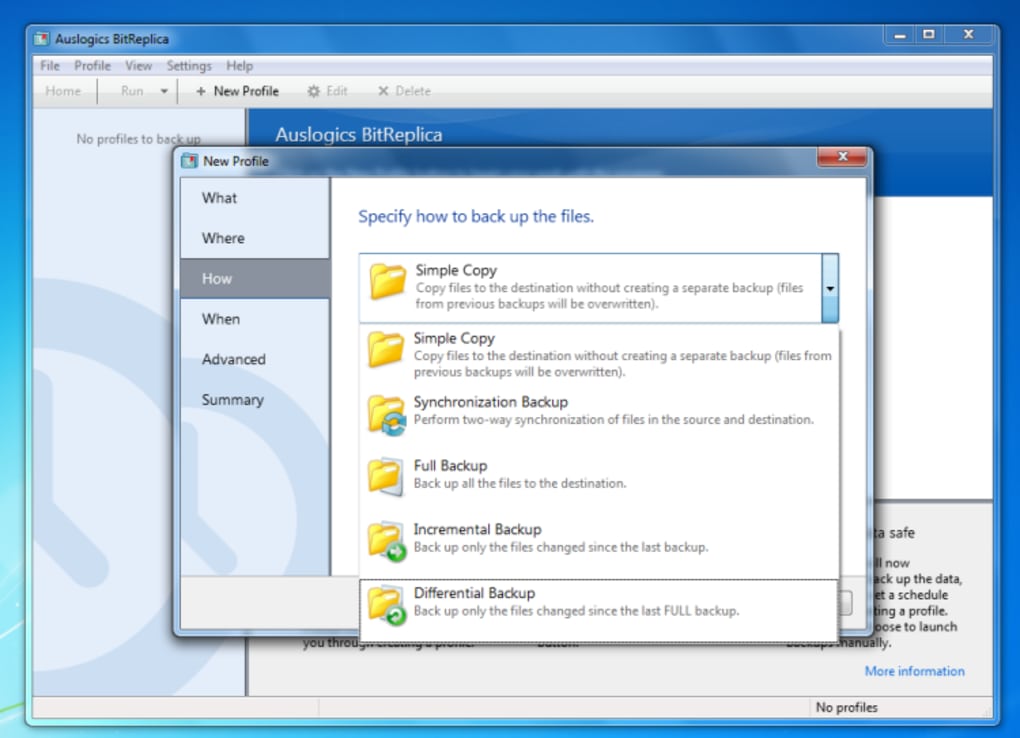
The core philosophy behind BitReplica is simplicity paired with reliability. Instead of offering a sprawling set of options that can overwhelm, the app provides a guided workflow that walks you through each step of the backup creation process. Click + New Profile, choose the folders you want to protect, set the frequency, and let the program handle the rest. The UI even prompts you after each stage, confirming that you’ve selected the right destination and schedule. This “hands‑on” approach removes guesswork, making the experience feel more like a personal assistant than a technical utility.
While the feature set may appear modest compared with enterprise‑grade backup suites, BitReplica’s design philosophy ensures that the most common backup scenarios are covered out‑of‑the‑box. Whether you need a weekly snapshot of your work documents or a monthly archive of family photos, the software lets you create multiple profiles, each with its own schedule and source folders. Once the profiles are defined, you can run them manually or let the built‑in scheduler take care of the rest.
Security is also baked into the product. All backup files are stored exactly as they appear on your drive, which means you retain full control over the encryption and storage method you prefer—whether that’s an external hard drive, a network-attached storage (NAS) device, or a cloud service like Dropbox or OneDrive. BitReplica does not lock you into a proprietary cloud, giving you the freedom to adopt a post‑backup strategy that matches your personal risk tolerance.
In short, Auslogics BitReplica is a straightforward, free backup solution that removes the friction typically associated with data protection. Its focus on ease‑of‑use, coupled with the flexibility to define multiple backup profiles, makes it an ideal choice for users who want a reliable safety net without the learning curve of professional backup suites.
Key Features That Make BitReplica a Practical Choice
- Profile‑Based Backup Management: Create unlimited backup profiles, each with its own source folders, destination, and schedule.
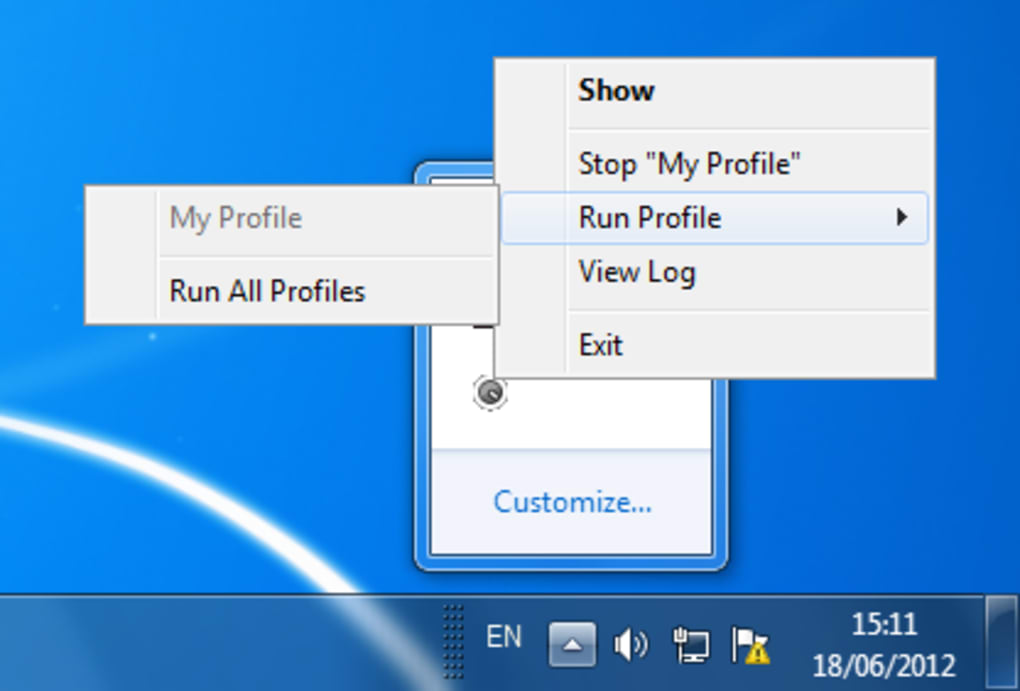
- Intuitive Scheduler: Choose daily, weekly, or monthly intervals for each profile, or run a one‑time backup with the “Run All Profiles” command.
- Clear Guided Setup: Step‑by‑step wizard that prompts you at every stage, reducing the chance of misconfiguration.
- Lightweight Design: Minimal system impact; the app runs quietly in the background without slowing down everyday tasks.
- Flexible Destination Options: Back up to local drives, external USB devices, network shares, or any cloud folder you sync locally.
- File Versioning Support: Keep multiple versions of the same file, allowing you to restore earlier copies if needed.
- Free for Personal Use: No hidden fees or subscription models—perfect for home users and small offices.
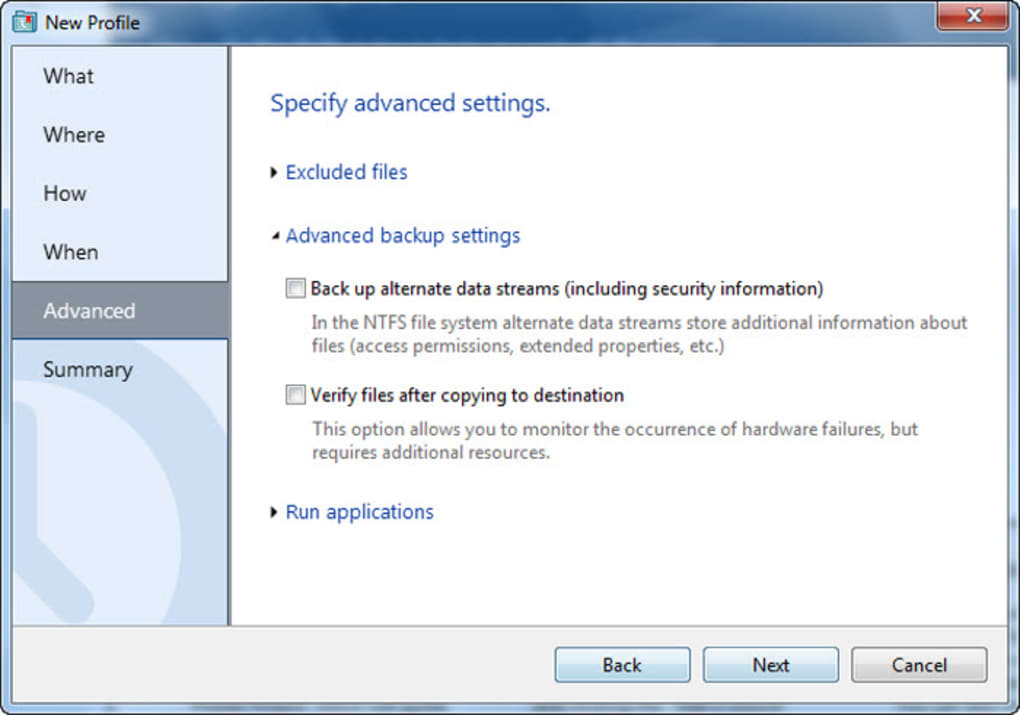
- Automatic Log Generation: Detailed logs are saved after each backup, helping you verify successful runs.
Each of these features is crafted to keep the user experience frictionless. For instance, the profile‑based approach mirrors the way many people organize their digital lives—by project, by file type, or by importance. Instead of setting up a single monolithic backup that copies everything (which can be wasteful and slow), you can target exactly what matters most at the cadence you prefer.
The scheduler is another highlight. While some tools require you to manually trigger each backup, BitReplica’s built‑in timer works quietly in the background, waking up only at the designated times to copy files. This reduces the risk of “forgotten backups” that can leave you vulnerable when a hardware failure strikes.
Because the app does not impose a proprietary cloud service, you retain full control over where your data lives after the backup finishes. This is a crucial security advantage: you can store copies on an encrypted external SSD, a fire‑protected NAS, or a reputable cloud provider of your choice, ensuring that a single point of failure does not jeopardize your data.
Lastly, the automatic log generation gives you a transparent view of each backup session. If a file fails to copy, the log pinpoints the cause—whether it’s a permission issue or a missing destination—so you can quickly remedy the problem without diving into complex error codes.
Installation, Usage Instructions, and Compatibility
Step‑by‑Step Installation Guide
Getting Auslogics BitReplica up and running is as simple as downloading a single installer. Follow these steps:
- Visit the official Auslogics website and locate the BitReplica download page.
- Click the Download Free button; the installer (usually a
.exefile) will begin downloading. - Once the download completes, double‑click the file to launch the setup wizard.
- Accept the End‑User License Agreement, then choose an installation folder (the default location works for most users).
- Click Install. The process takes less than a minute on a typical Windows 10/11 machine.
- After installation, launch BitReplica from the Start menu or desktop shortcut.
The installer is digitally signed by Auslogics, ensuring a secure download free from malware. If Windows SmartScreen raises a warning, you can safely proceed by clicking “More info” and then “Run anyway,” as the software is recognized and trusted.
Using BitReplica: Creating Your First Backup Profile
Upon launching the app, you’ll be greeted with a clean dashboard. Click the + New Profile button to start. The wizard will walk you through three primary steps:
- Select Source Folders: Browse your computer and tick the directories you wish to back up (e.g., Documents, Pictures).
- Choose Destination: Pick a folder on an external drive, a network share, or a local path that syncs with a cloud service.
- Set Frequency: Decide how often the profile should run—daily, weekly, monthly, or just once.
After confirming the settings, BitReplica saves the profile and returns you to the main screen, where you can see a summary of all active profiles. To initiate an immediate backup, click the Run All Profiles button. The program will display a progress bar and, once finished, will generate a log file that you can review for any issues.
Operating System Compatibility
Auslogics BitReplica is built exclusively for Windows operating systems. It supports Windows 7, Windows 8/8.1, and the latest Windows 10 and Windows 11 builds. The software runs smoothly on both 32‑bit and 64‑bit architectures, though 64‑bit is recommended for better performance with large backup sets.
While there is currently no native macOS, Android, or iOS version, Windows users can leverage the software to back up files that are later synced to cross‑platform cloud services, effectively extending protection to other devices.
Pros, Cons, and Frequently Asked Questions
Pros and Cons Overview
- Pros:
- Extremely easy to set up – ideal for non‑technical users.
- Free for personal use with no hidden subscription fees.
- Profile‑based approach offers flexible scheduling.
- Lightweight footprint; runs silently in the background.
- Works with any storage destination you choose.
- Detailed logs help troubleshoot backup failures.
- Cons:
- Lacks advanced features such as incremental differential backups.
- No built‑in cloud storage; relies on external services.
- Limited to Windows; no macOS, Linux, or mobile apps.
- Customization options are minimal for power users.
FAQ – Answers to Common Queries
Is Auslogics BitReplica truly free for personal use?
Yes, BitReplica is offered at no cost for personal, non‑commercial use. There are no hidden fees, and the full feature set is available without a trial period.
Can I back up to a network-attached storage (NAS) device?
Absolutely. When selecting the destination folder, you can browse to any mapped network drive, allowing you to store backups on a NAS or a shared folder on another computer.
Does BitReplica support encryption of backup files?
The software itself does not encrypt files during the backup process. However, you can place the backup destination inside an encrypted drive (e.g., BitLocker‑protected) to achieve encryption.
What happens if a backup fails?
BitReplica writes a detailed log entry for each run. Failed files are listed with error codes, allowing you to identify permission issues, missing destinations, or corrupted source files.
Can I schedule multiple backups to run simultaneously?
The scheduler runs each profile sequentially based on the time they are due. While you cannot force parallel execution, the process is fast enough for most home users, and you can prioritize critical profiles by adjusting their schedule.
Conclusion & Call to Action
Auslogics BitReplica fills a niche that many backup utilities overlook: providing a no‑frills, reliable solution that anyone can use without a steep learning curve. Its profile‑centric design, combined with a clean interface and free pricing, makes it an excellent first line of defense for personal data. While power users may crave more granular controls or built‑in cloud storage, the app’s simplicity is its greatest strength for the majority of home users and small offices.
If you’re looking for a straightforward way to protect documents, photos, and other important files on a Windows PC, BitReplica is ready to download and install in under five minutes. Pair it with an external drive or a cloud‑sync folder, set up a few profiles, and enjoy peace of mind knowing your data has a reliable copy.
Ready to safeguard your files? Download Auslogics BitReplica now and start creating backups instantly. Remember, a good backup strategy is the cornerstone of digital resilience—don’t wait for a data loss event to take action.
Overall Rating: 4 out of 5 stars
Pros: Simple UI, free, flexible profiles, low system impact.
Cons: No built‑in encryption, Windows‑only, limited advanced options.







